
Although Scoopz is a mobile app, you can use it on PC with an Android emulator. In this guide we will be using BlueStacks emulator as it is the most popular option.
Installing Android Emulator on your PC
First off, we need to install an Android emulator so it can read APK files.
- Go to bluestacks.com.
- Click on the Download Bluestacks button.
- Double-click the .exe file and follow the on-screen instructions to install the emulator. The program will take some time to download and install its files.
- Open BlueStacks and make sure you have Android 13 instance (or higher) installed. For that, go to Multi-instance manager (on the panel on the right, at the bottom):

- And if it says Android 13 (or higher) you’re fine:
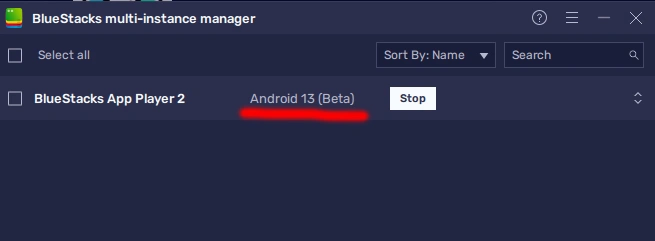
- If it is not, click on Instance at the bottom left:

- Select Fresh Instance.
- In the drop-down menu select Android 13 (Beta):
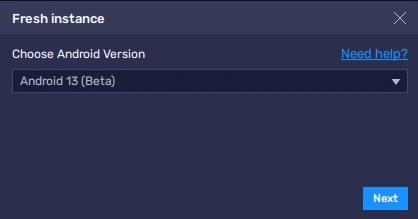
- Click Next. Select what resources you want to allocate, but make sure you have selected Custom in ABI Setting and checked all options:
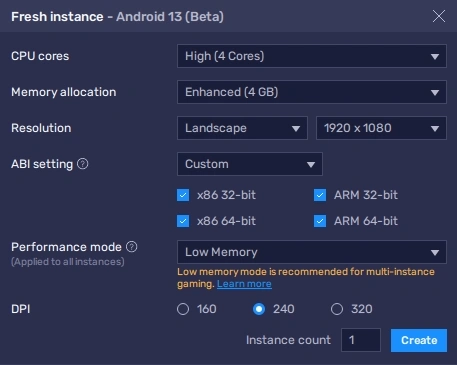
- Click on Create and wait some time until files are downloaded. Now stop your first instance and start the one that features Android 13. Steps from 5 to 10 are important, because if your instance is simulating Nougat or Pie, Scoopz won’t work on your PC.
Once you’ve successfully installed the Android emulator and make sure it is of correct version, it is time to download and install Scoopz on your PC. Here you can go two ways: directly download APK from our website or go to Google Play store to get the app from there.
Let’s start with the APK option since it avoids any regional limits the Scoopz app has.
Install Scoopz APK on PC
- Go to the Download Scoopz page on scoopzapk.com.
- Click on Download APK and save it on your computer.
- Open BlueStacks emulator.
- Drag and drop the APK file into the emulator’s window (or double click on the apk file). The installation process will start:

- Wait for the app to finish the installation process.
Alternative variant:
- Open scoopzapk.com using the built-in browser in BlueStacks. For that, click on My games at the top left corner:

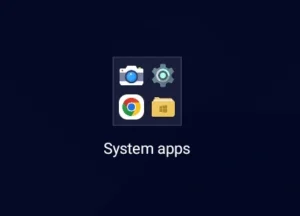
- Select System apps and then select Chrome:
- Type or paste scoopzapk.com into the browser and click Enter:

- Click on Download Scoopz and then click on Download APK. Wait till the file is downloaded; the following icon will be displayed at the top left corner:

- After downloading is complete, you’ll see the following notification:
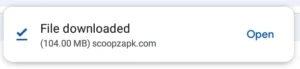
- Click Open and install the app.
Install Scoopz on PC via Google Play
- Open Google Play inside the emulator. It is located in My Games -> System Apps:
- You will need to enter your login and password if launch Google Play on BlueStacks for the first time.
- Search for Scoopz.
- Click Install and wait till the app is downloaded and installed.
- Finally, click Open to launch the app.